











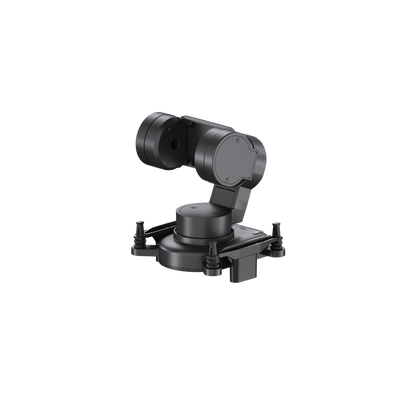
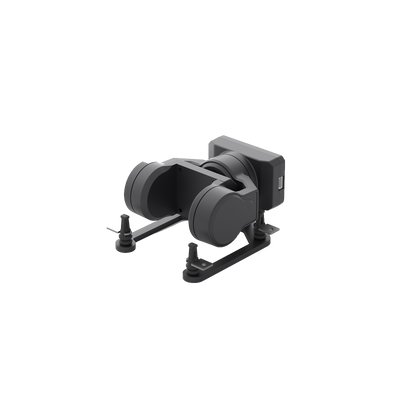
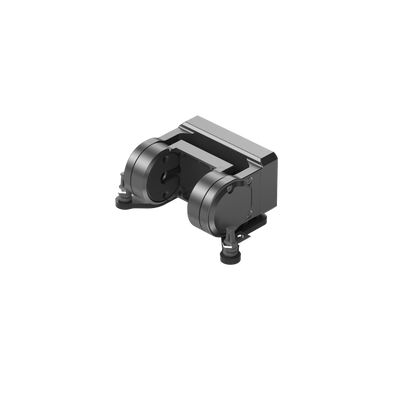













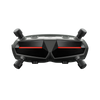


Wide 3-Axis Range of Motion
More freedom of movement for a more immersive FPV experience
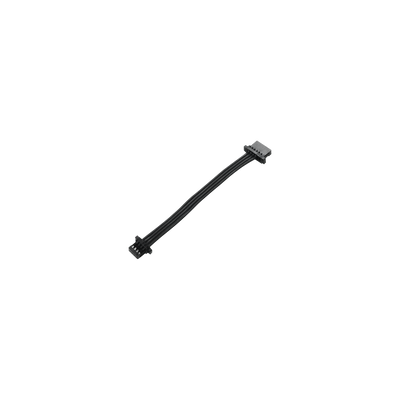
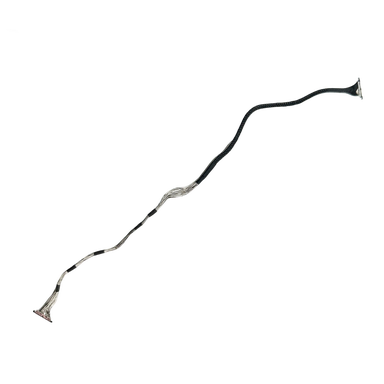
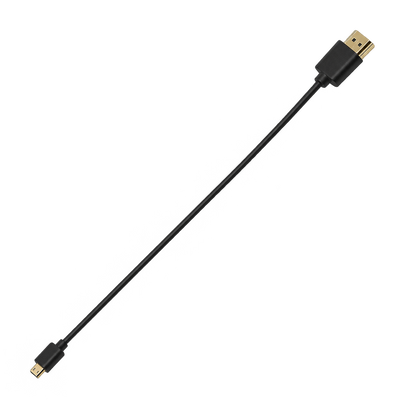
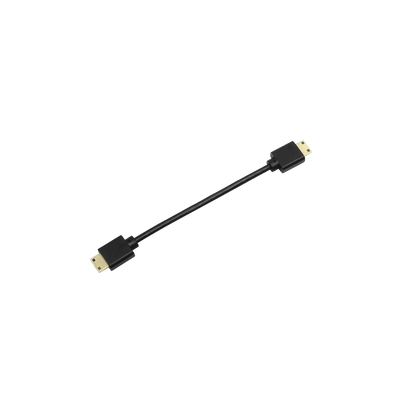
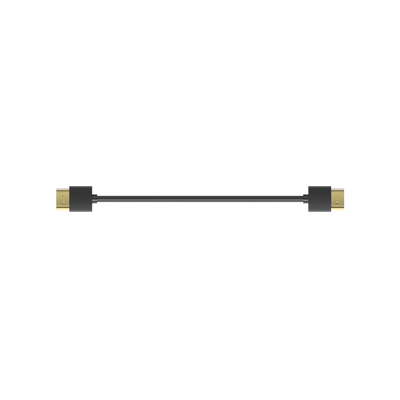
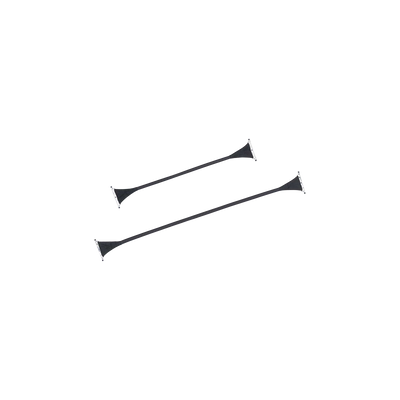
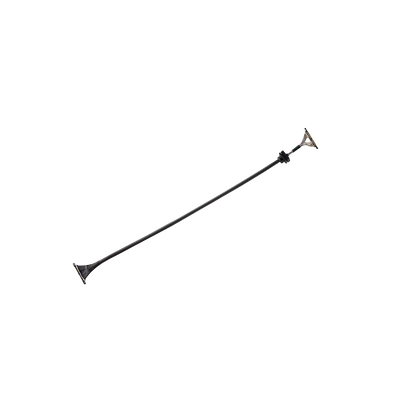
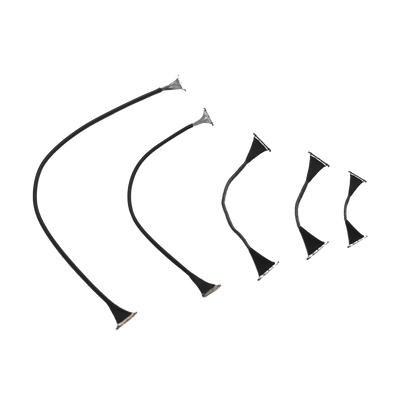 Walksnail Coaxial Cable
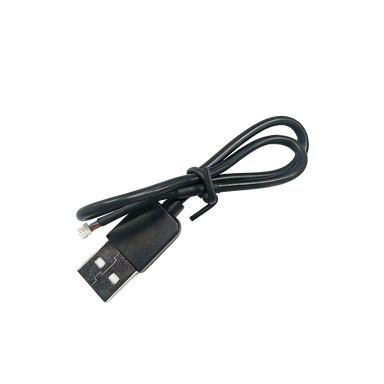
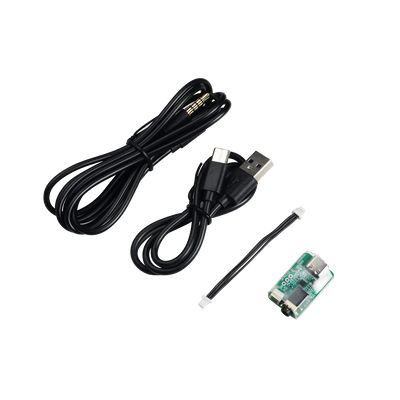
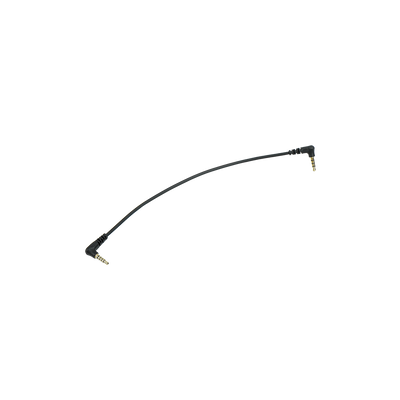
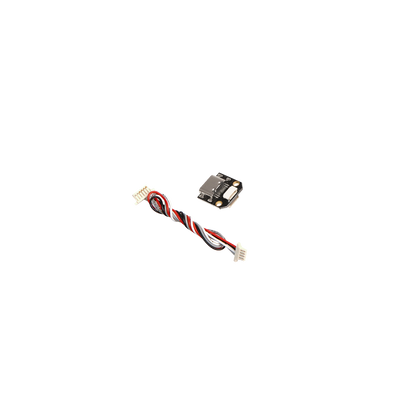 Walksnail Type-C USB Cable
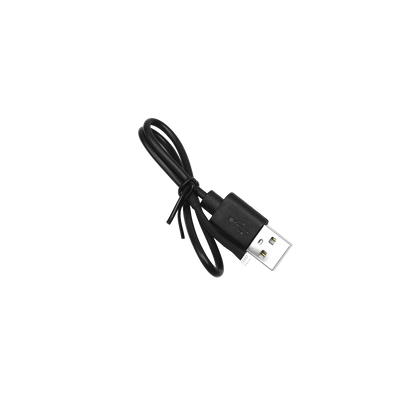 Free-Walksnail Kit USB Cable
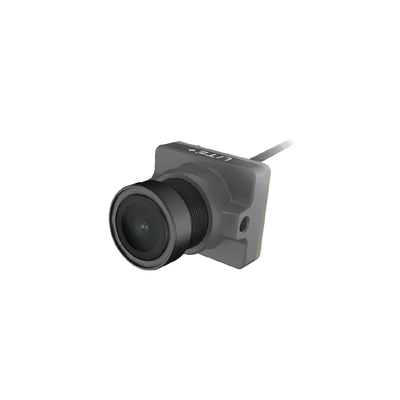
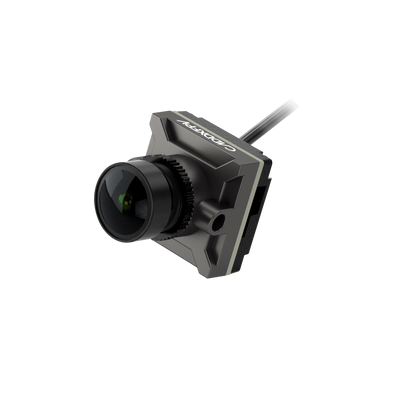
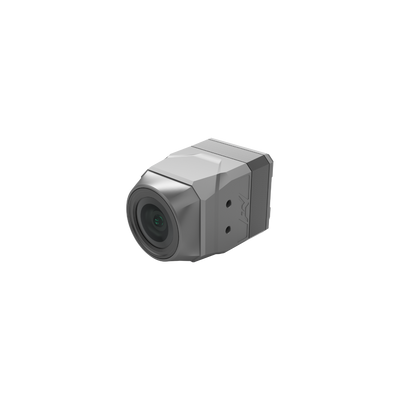
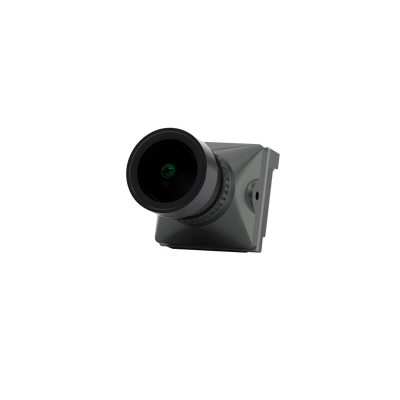
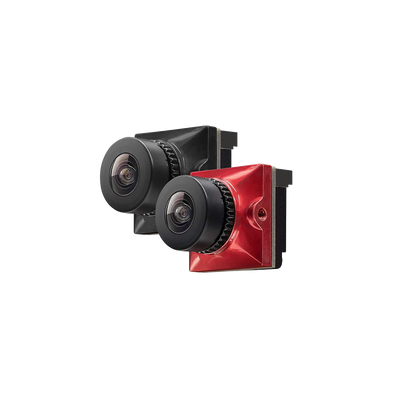
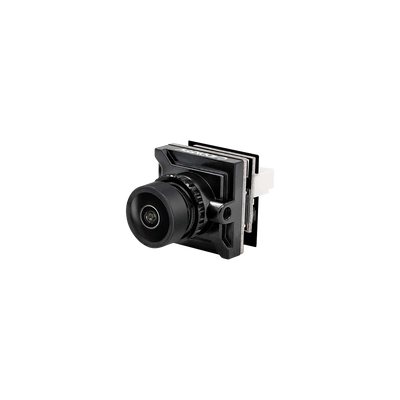
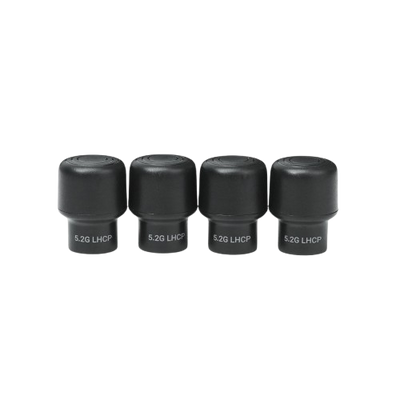
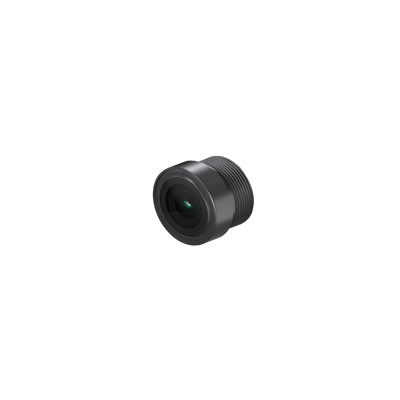
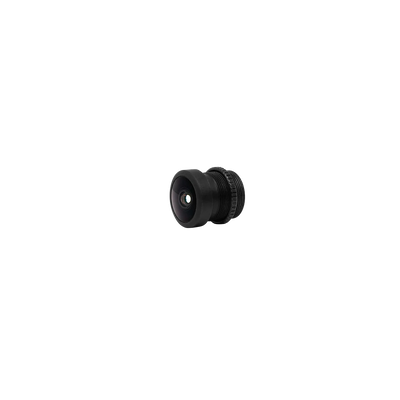
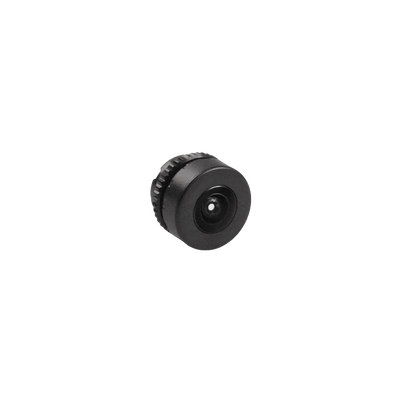 Walksnail Lens Family
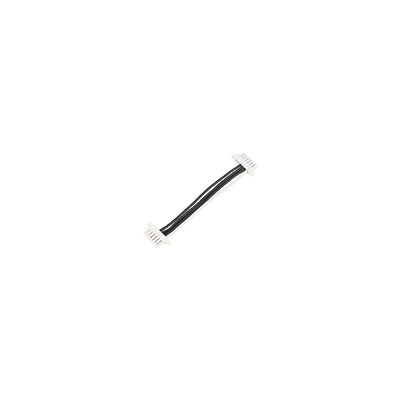 Moonlight VTX USB Cable
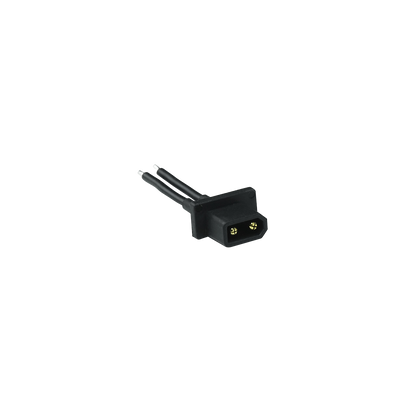
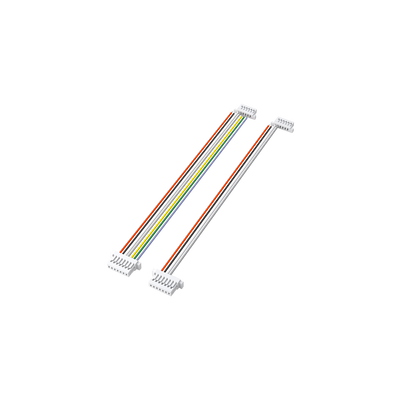
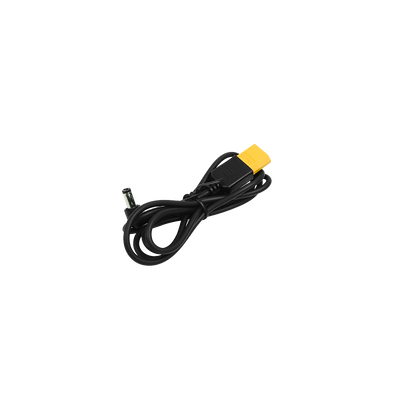
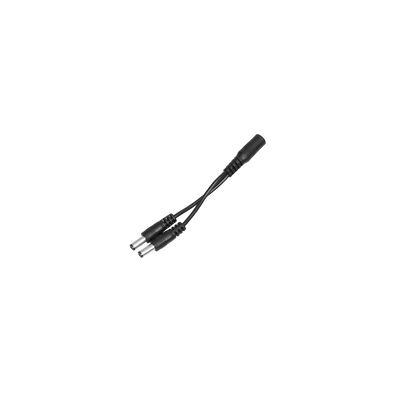
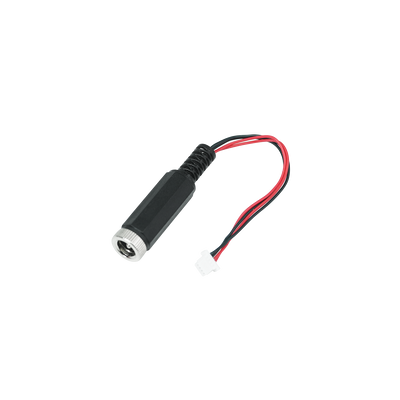
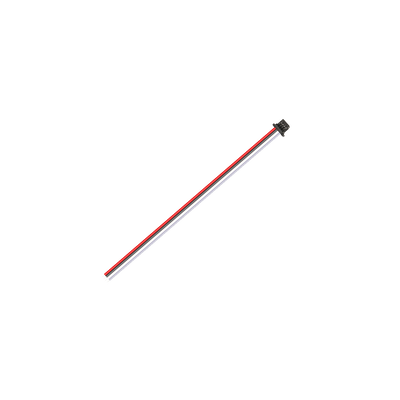 Walksnail Kit Power Cable
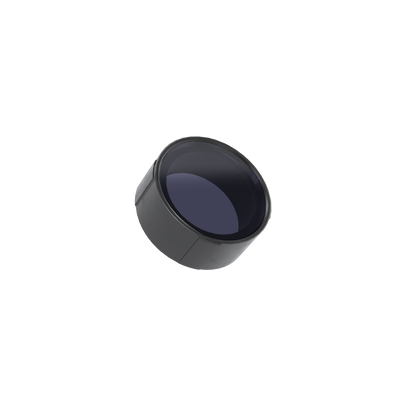
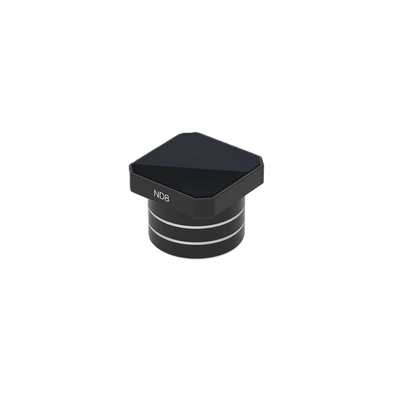 Walksnail Camera ND Filter
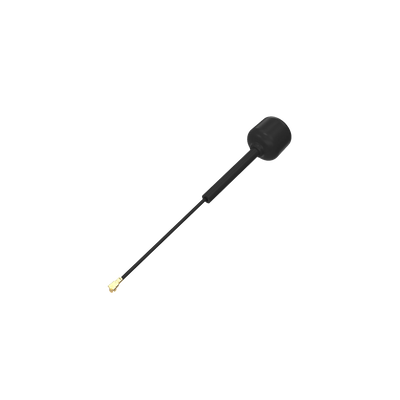 Walksnail VTX V2 Antenna
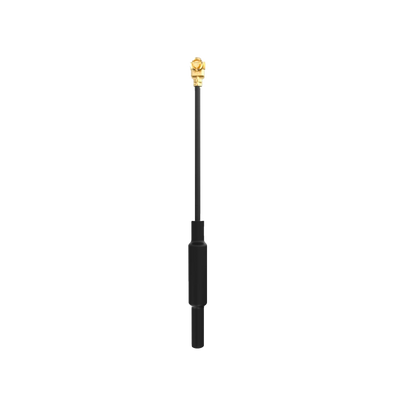
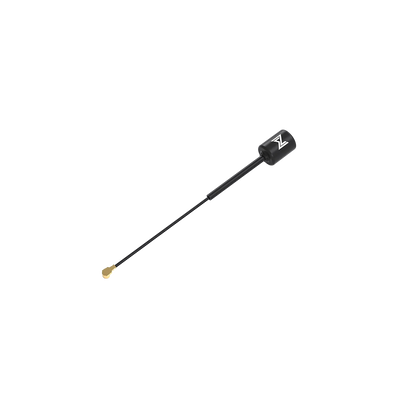
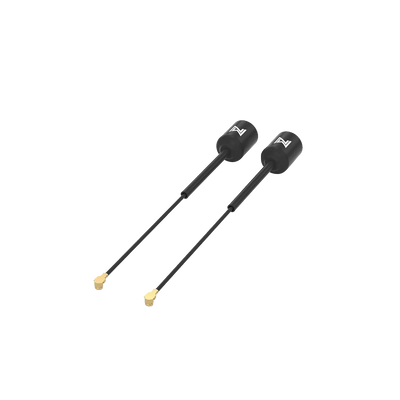 Walksnail VTX Antenna
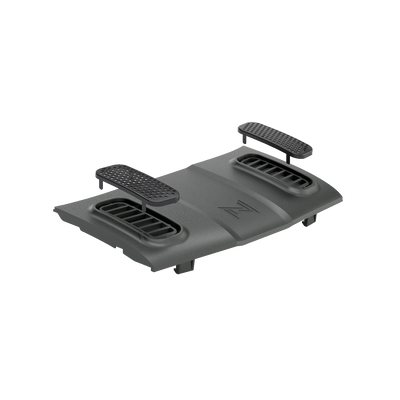
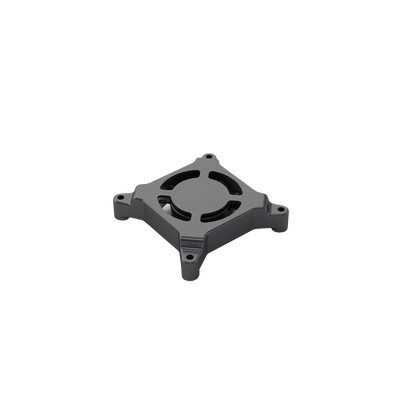 Walksnail GT Kit Cooling Fan
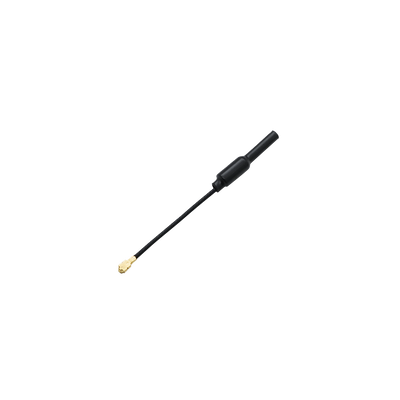 Walksnail Mini 1s Lite Antenna
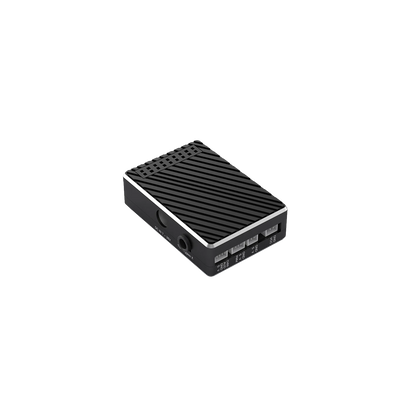
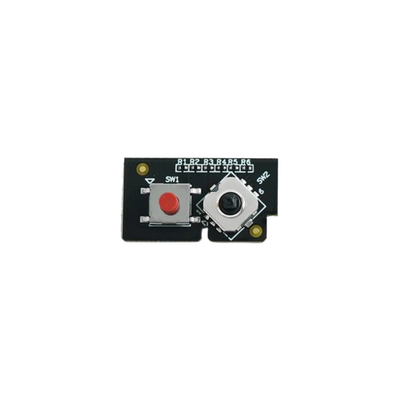
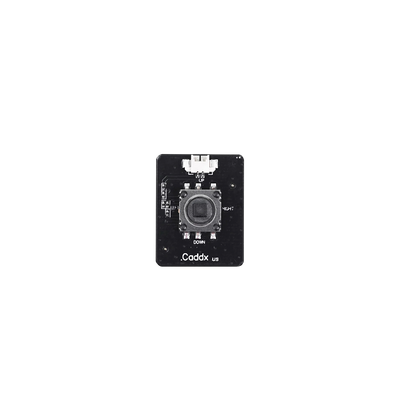 Camera OSD Menu Board
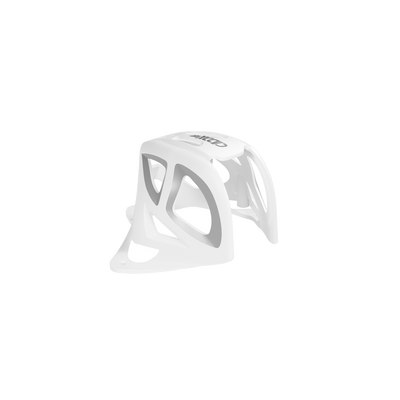
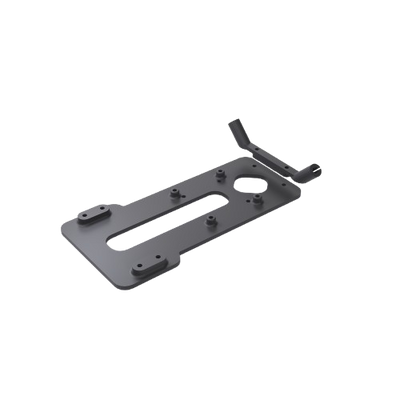
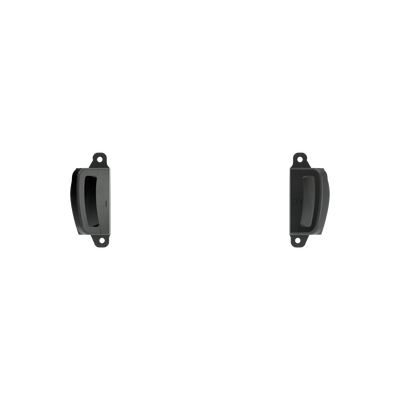
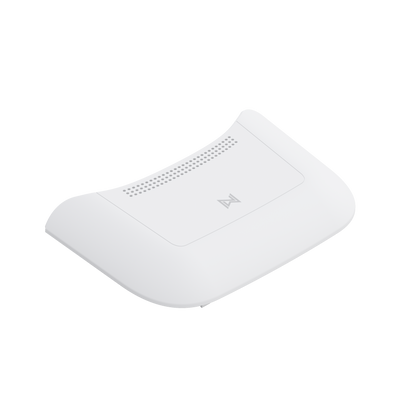
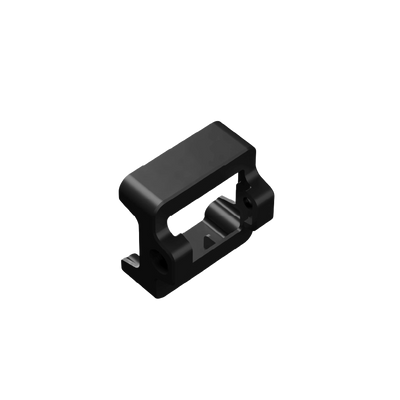
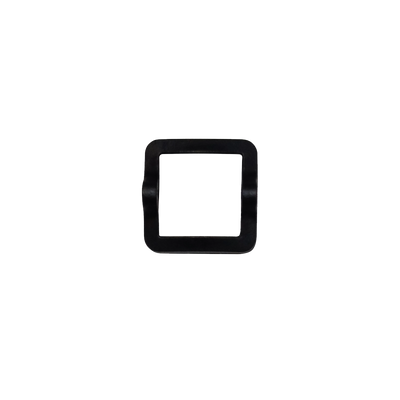 Walksnail 1s Kit Bracket
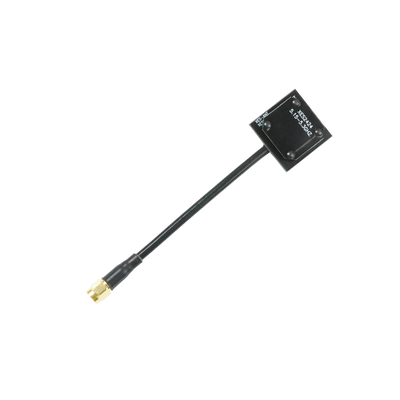
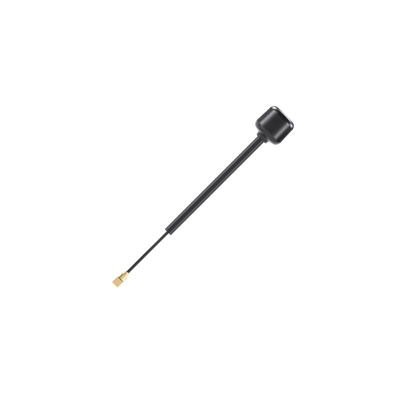 GT2 Antenna
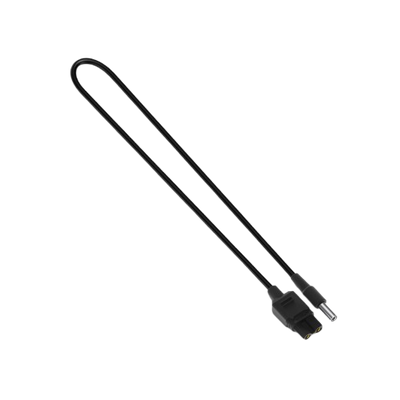
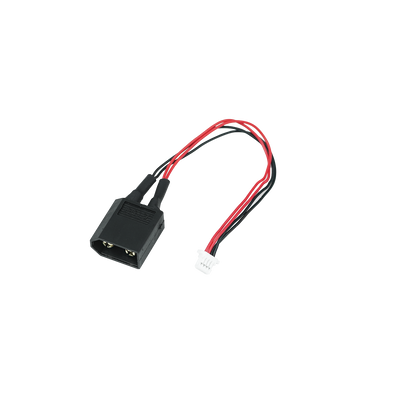
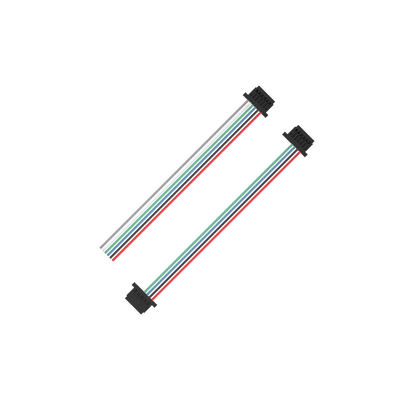 GT2 Power Cable

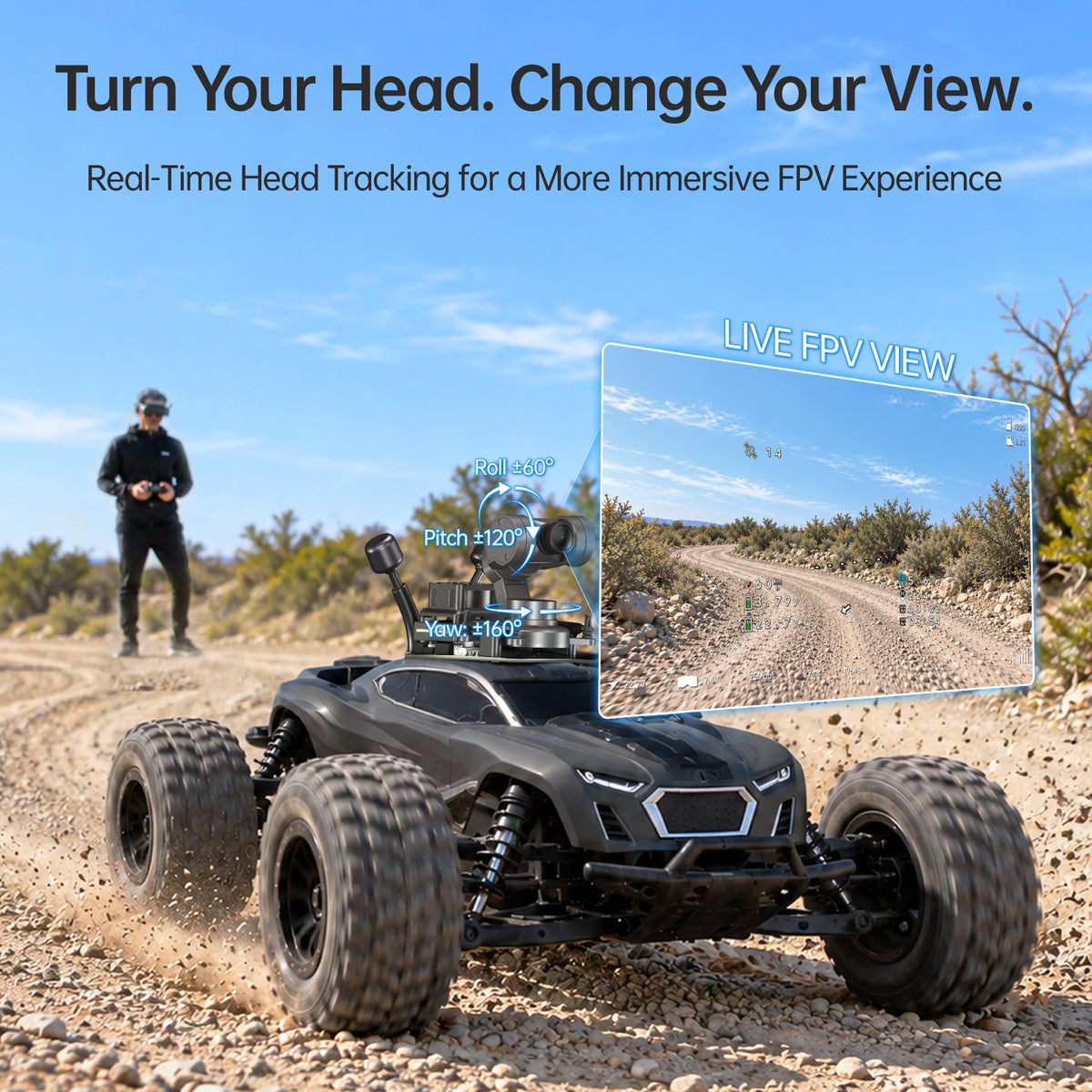
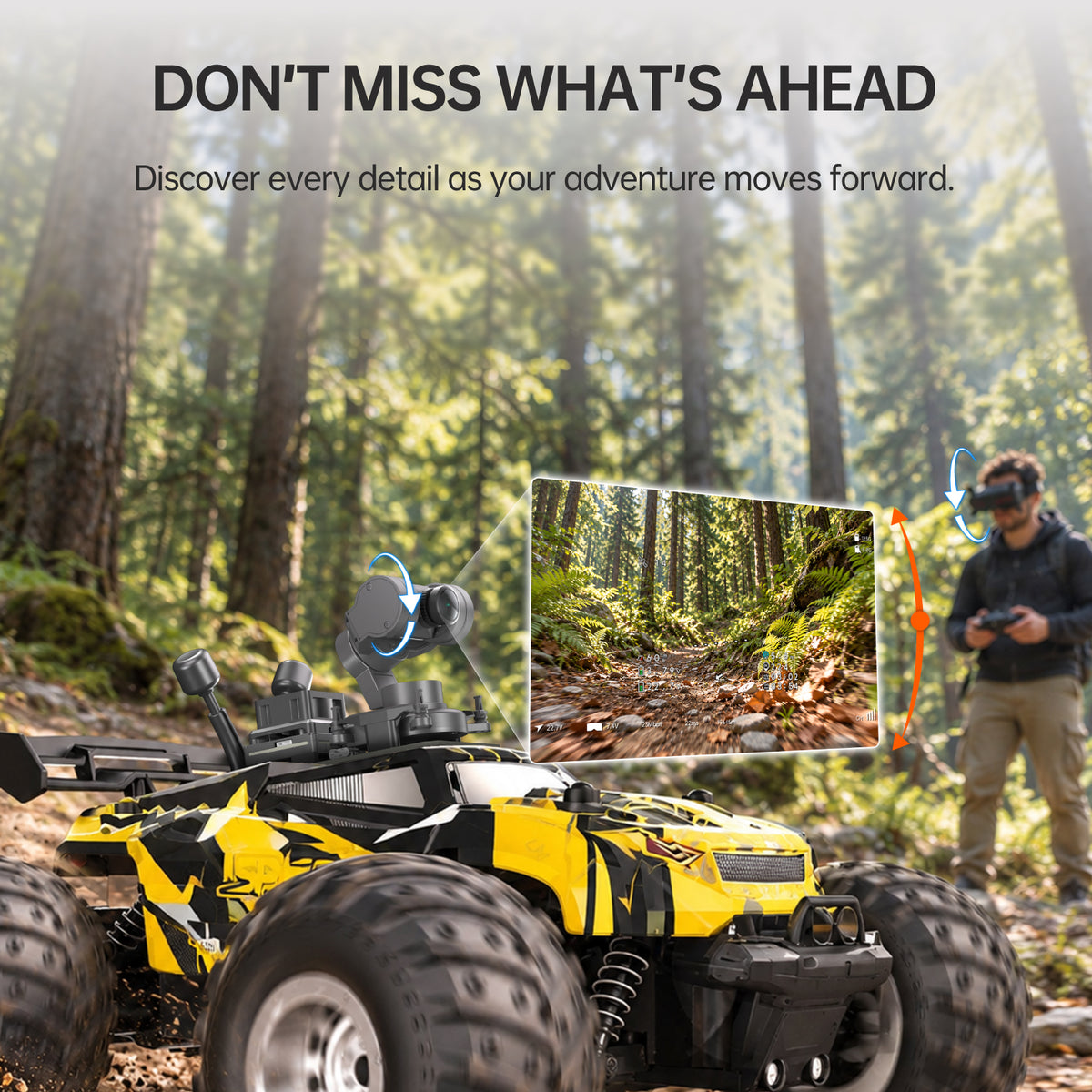
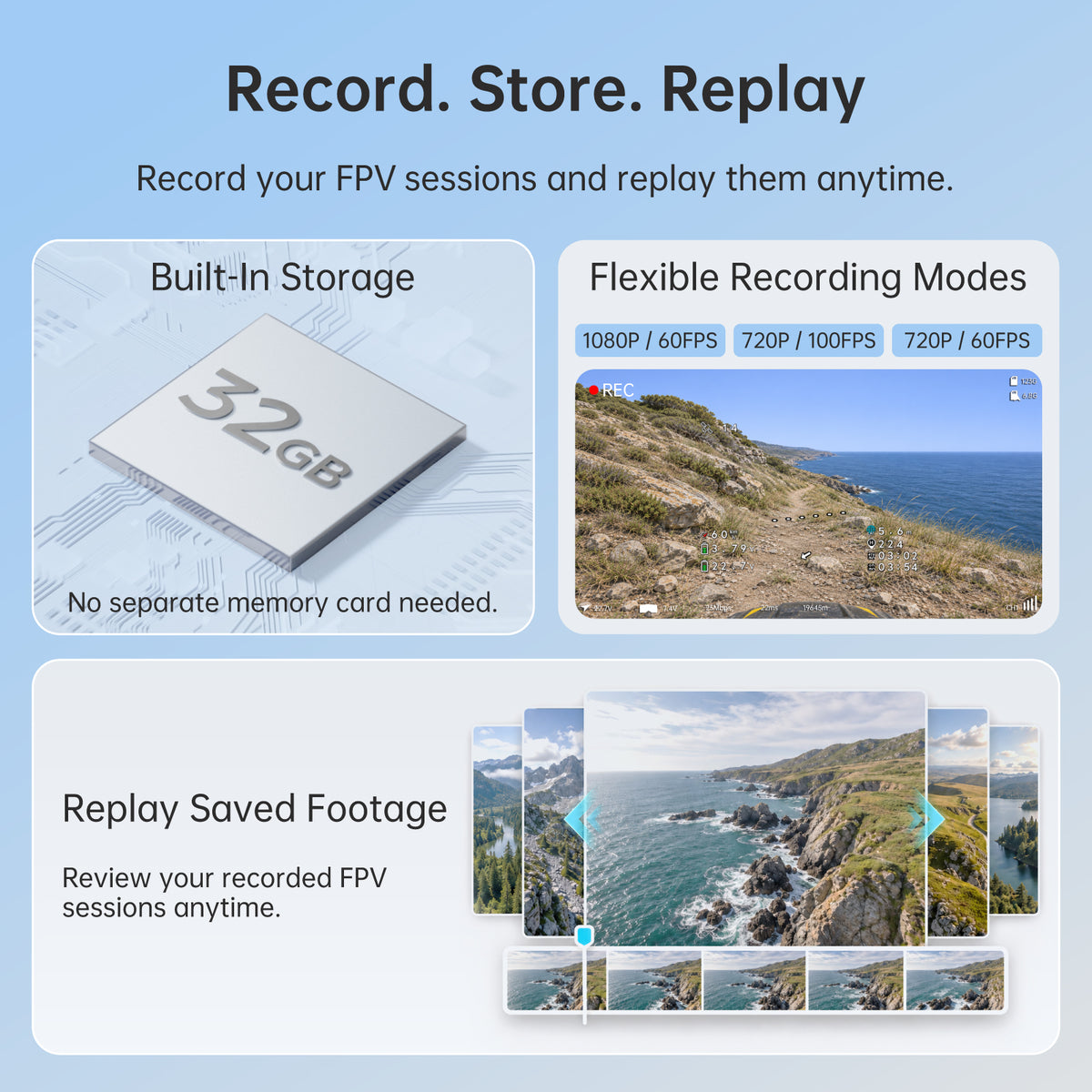
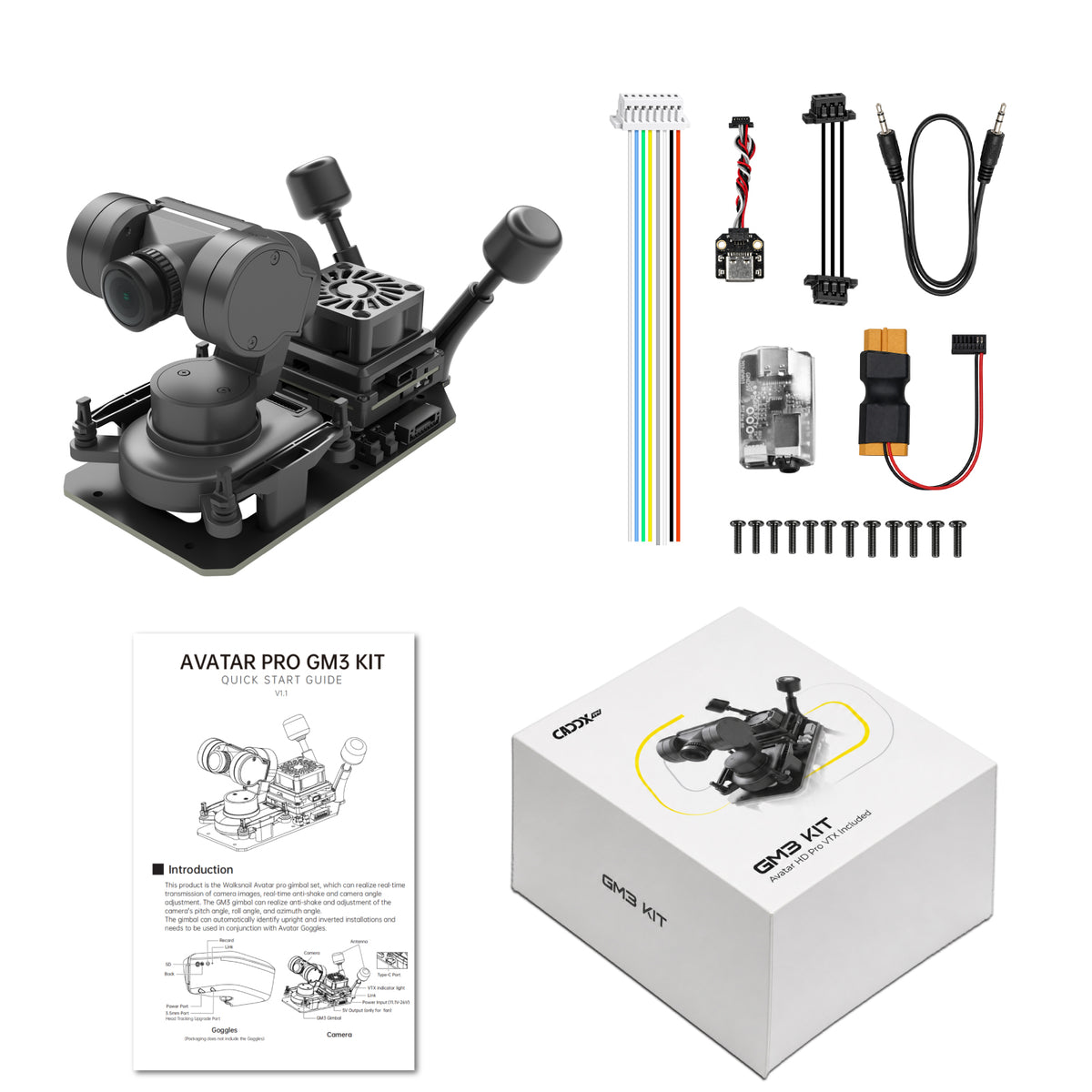


More freedom of movement for a more immersive FPV experience

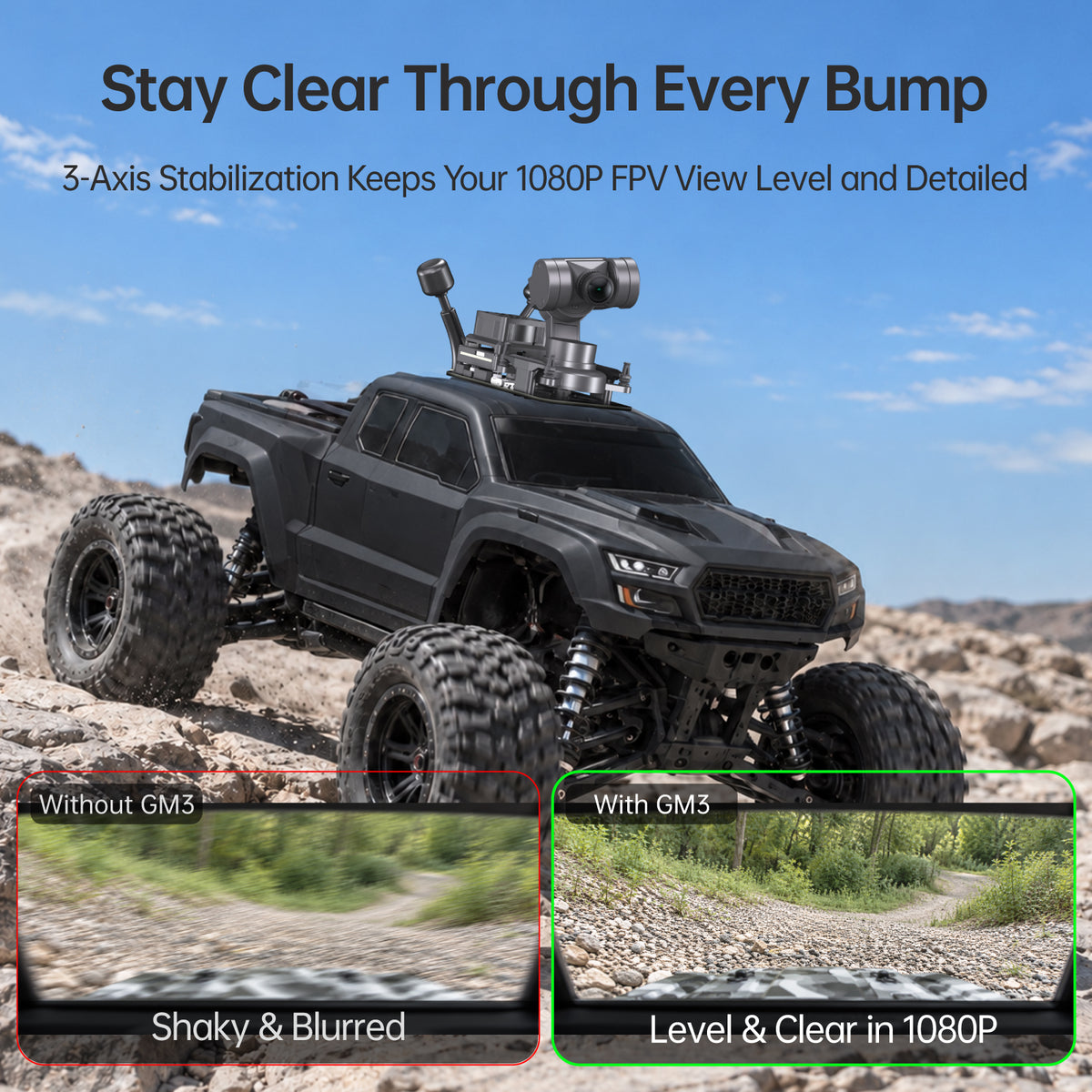
With a stabilization accuracy of ±0.005°, the FPV image stays calm, smooth, and stable, even during fast movements.


11.1–25.2V Wide-voltage input with broad FC compatibility. Multiple FC Support: Betaflight · iNav · Kiss Ultra · FETtec · ArduPilot.


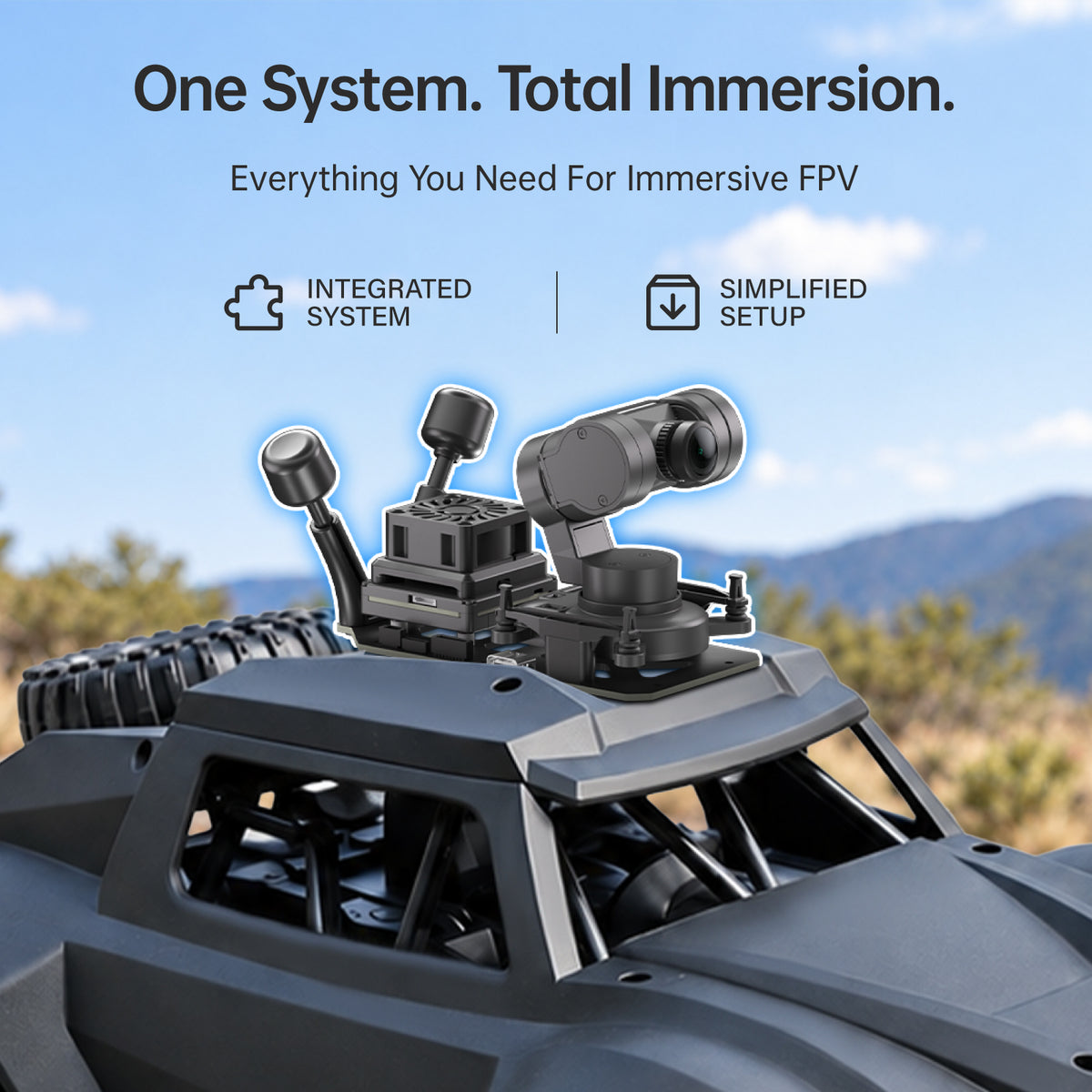
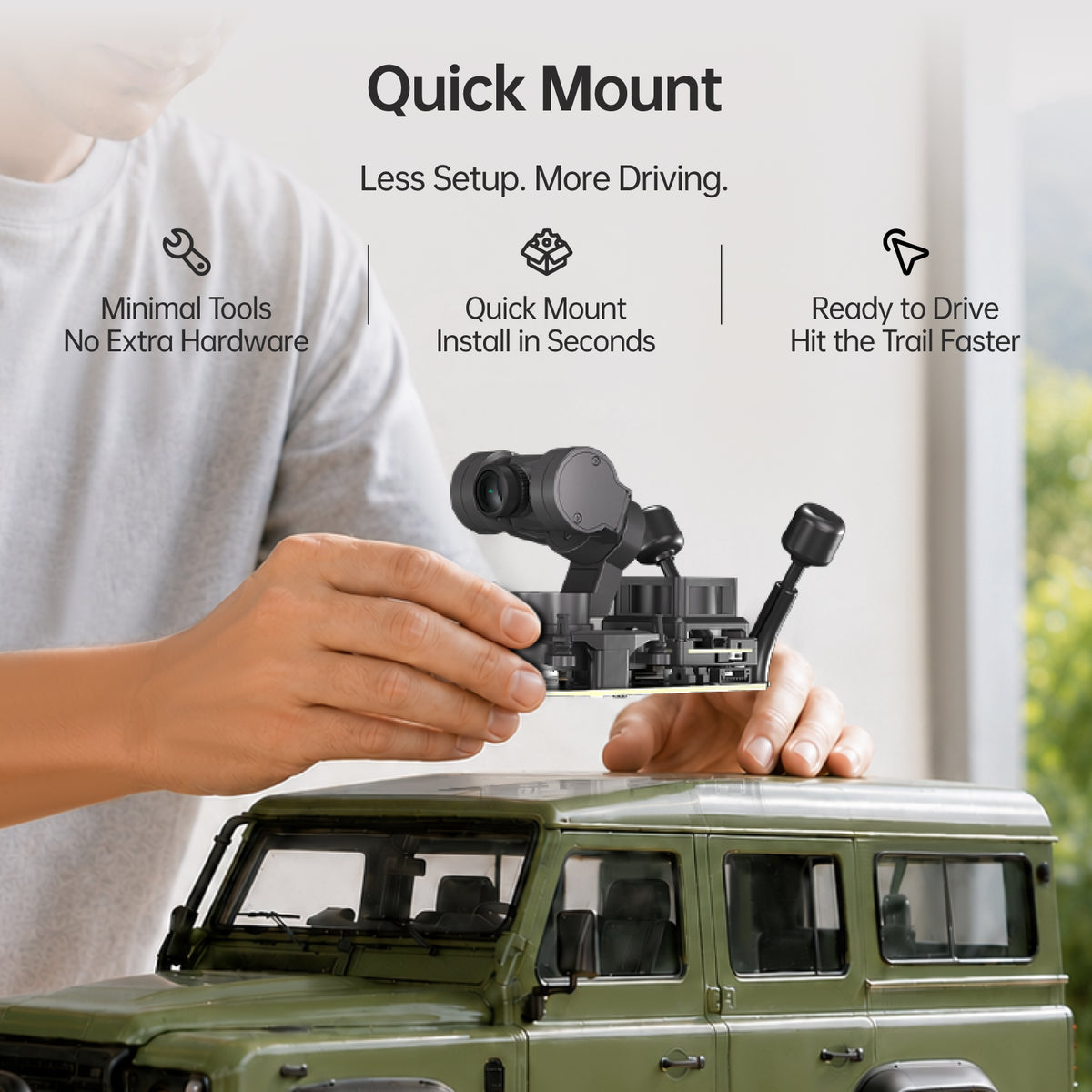
An organized system designed to reduce wiring and setup hassle. An organized system designed to reduce wiring and setup hassle.
See the track and every detail clearly while racing


Restore alignment between your goggles and gimbal with a simple button operation


Yes. The VTX and gimbal are integrated and pre-assembled.
Video range varies with the environment. Buildings, trees, and other obstacles can shorten it. Your practical driving range is limited by whichever signal drops first—the video or the remote control.
The kit requires a mounting area of approximately 10 × 5 cm, with a base plate about 0.5 cm thick. The required height varies by VTX version, so please check the dimensions of your selected version before purchase. Make sure there is also enough clearance for the gimbal to move.
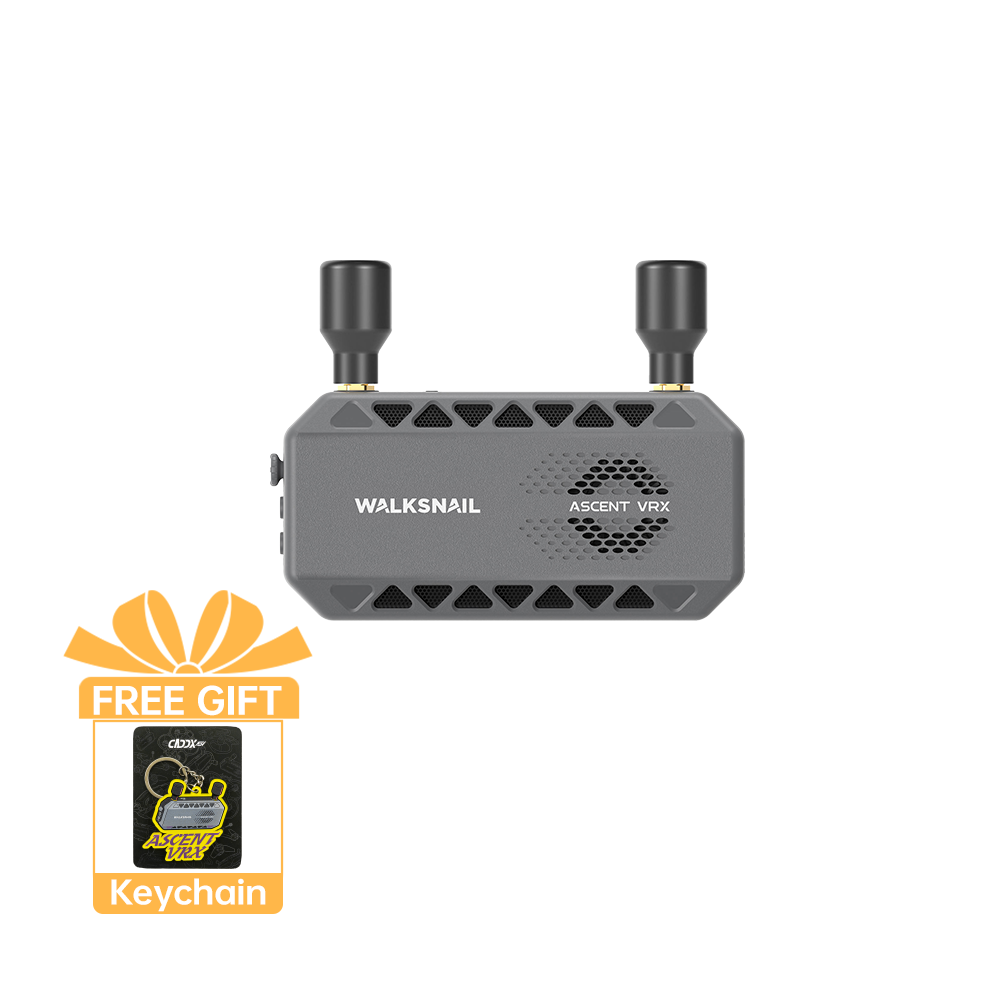
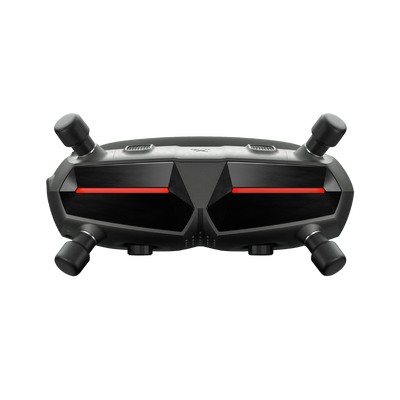
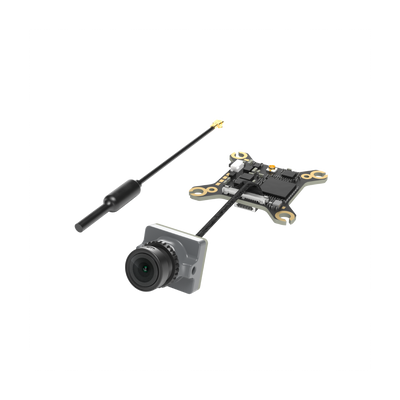
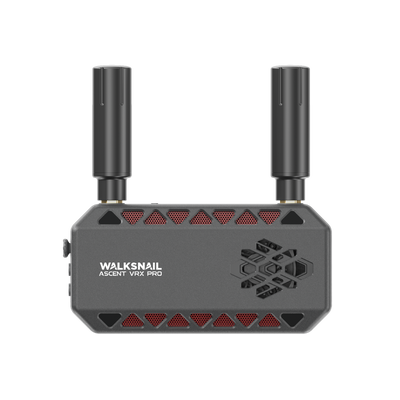
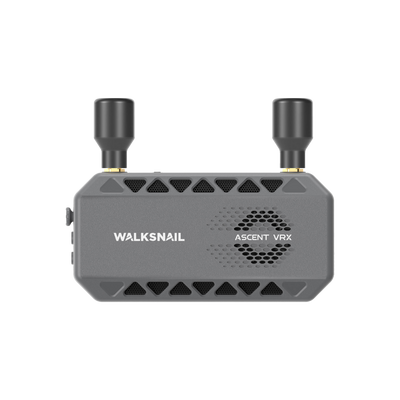
The VTX in this kit works with compatible Walksnail Avatar goggles. If your goggles have an HDMI input, you can connect them to the Walksnail Avatar VRX via HDMI. The Avatar VRX is sold separately.
You’ll need a compatible power supply and FPV goggles, or an HDMI-compatible headset with the Walksnail Avatar VRX.
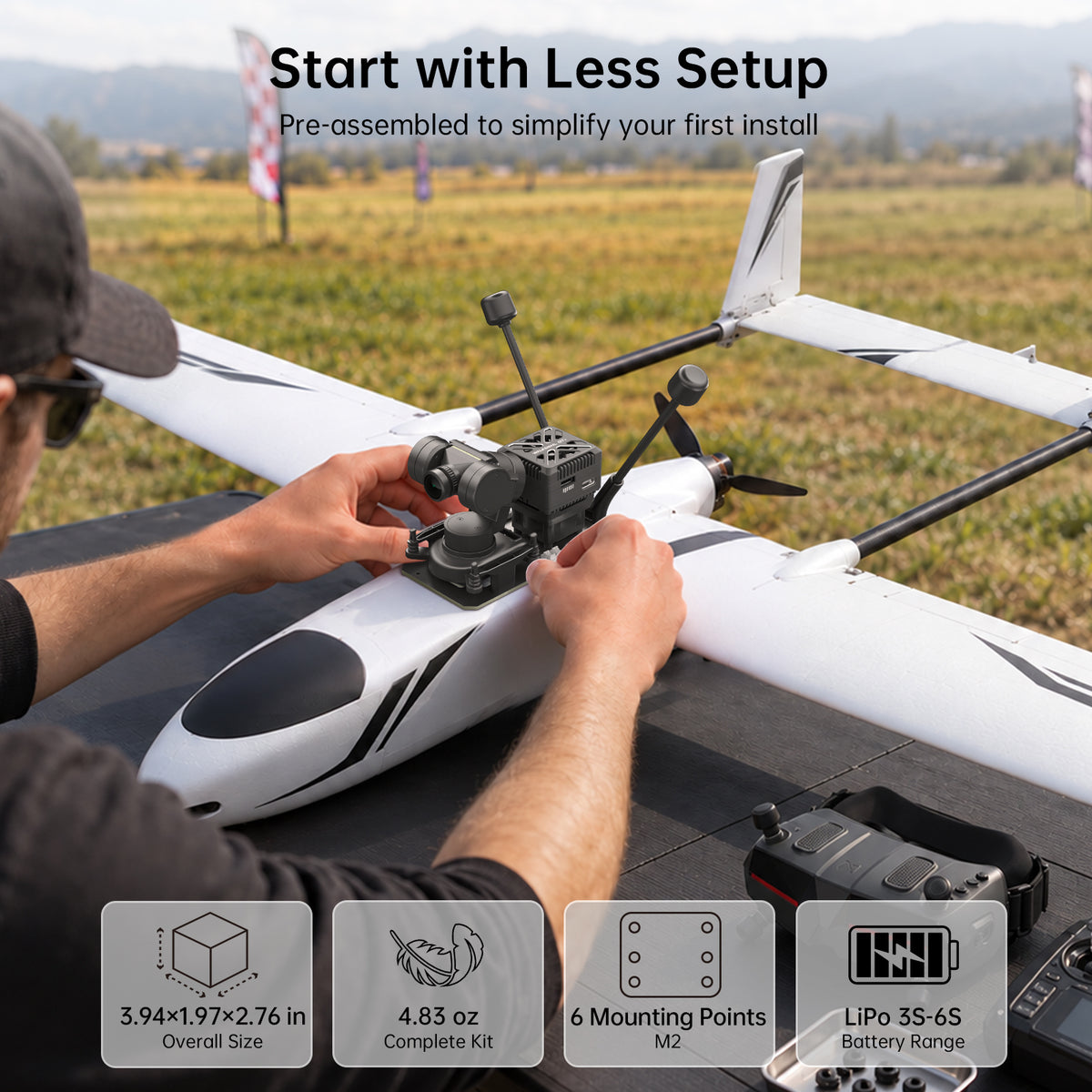
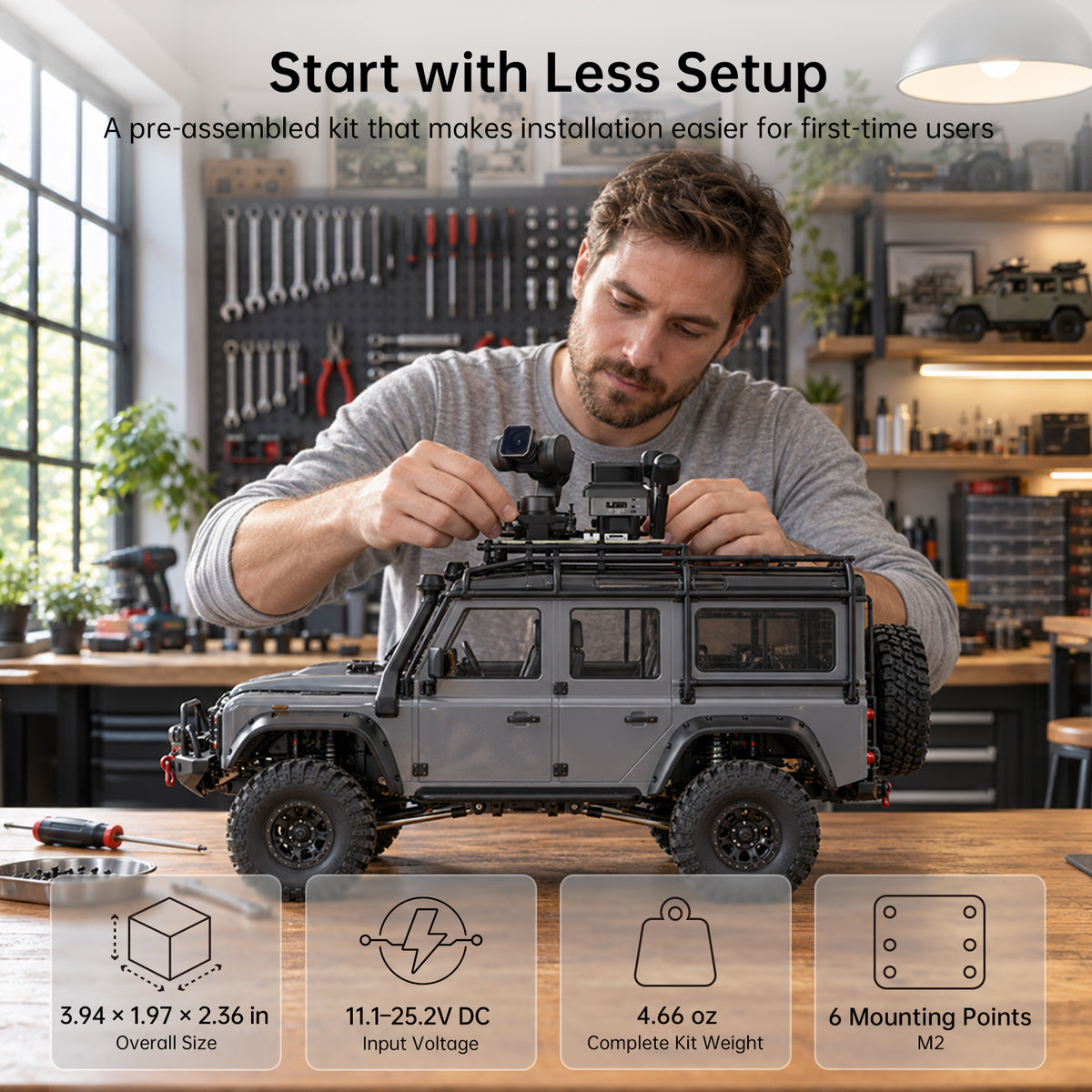
It is designed for RC cars, RC boats, fixed-wing aircraft, and FPV drones. Please make sure your vehicle has enough mounting space and clearance for the gimbal to move.
It supports a wide voltage input of 11.1V–25.2V, compatible with 3S–6S LiPo batteries. Do not use a battery above 26V, as it will permanently damage the kit. Static power consumption is up to 22W, and up to 40W when the gimbal is stalled. Disconnect the power when not in use.
Power on the goggles and camera, short-press the pairing button, and wait for the goggles to beep and the camera indicator to stay solid red. Then go to Settings > Head Tracking and select Gimbal. The gimbal will follow your head movement, and pressing the Back button 3 times quickly re-centers it.
You can quickly press the Back button on the goggles 3 times to re-center the gimbal. Alternatively, go to the head tracking menu and select “Reset Attitude Angle” to return the gimbal to its neutral point.